Plan App Store and Google Play Screenshots Without Losing Readability
MockShot
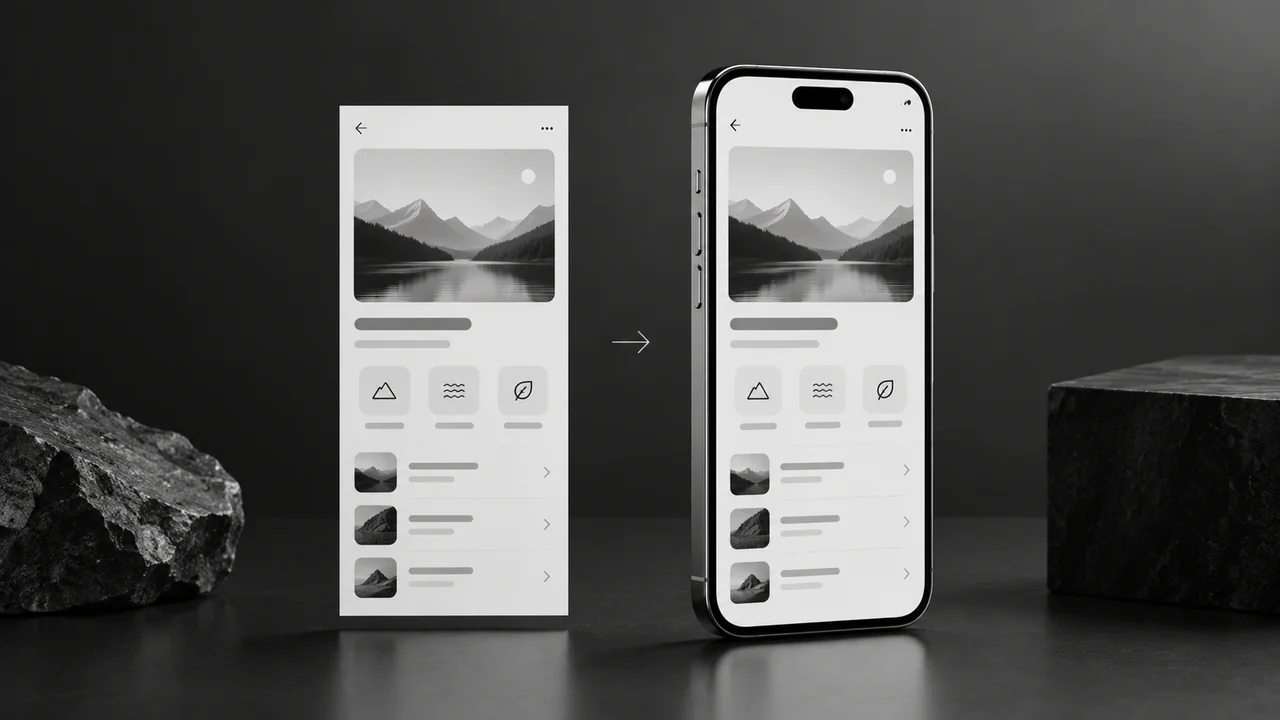
Build a small, truthful screenshot sequence, choose destination-specific dimensions and check the actual exported files before submitting your app listing.
A store screenshot is not simply a device mockup with a headline attached. It has to show what the app actually does, remain readable at a small size and meet the destination's current upload requirements. A beautiful image can fail at any one of those tasks. Prepare the story and the delivery specification separately, then use the editor to bring them together.
This workflow uses a hypothetical task-planning app with synthetic data. The example headlines are writing prompts, not claims about a real customer's results. MockShot can help compose the images, but it does not validate an app listing or guarantee approval by either store.
Start with three useful moments
Write down the question each image should answer before choosing a background. For the task app, a useful sequence might be: what should I do next, how do I plan the week, and what have I finished? Capture a real supported interface state for each moment. Do not show a desktop screen inside a phone to imply that a mobile version exists if it does not.
| Image | Example screen | What to make visible | What to avoid |
|---|---|---|---|
| First | Today's tasks | One clear next action | An empty account with no explanation |
| Second | Weekly planning | A useful relationship between days and tasks | A calendar squeezed so small that dates disappear |
| Third | Completed work | A believable result using marked demo data | Invented ratings, revenue or customer outcomes |
This is a composition plan, not a requirement to upload exactly three images. A product with one important workflow may need a different sequence from a game or an app with several device types. Remove a screenshot if it repeats the previous one without explaining anything new.
Confirm the destination specification first
Apple's accepted screenshot sizes depend on the display category. Its specification also excludes alpha channels and transparency. Check the required category for your app in Apple's screenshot specifications before setting custom canvas dimensions. A built-in preset is a starting point, not proof that a particular submission requirement is satisfied.
For Google Play, the general screenshot requirements include JPEG or 24-bit PNG without alpha, dimensions from 320 to 3840 pixels, and a longest side no more than twice the shortest. Its guidance distinguishes these basic upload rules from additional recommendations for promotional eligibility. Check Google Play's current preview-asset guidance for your device category rather than treating one portrait preset as universal.
These links were checked on October 25, 2026. The upload console is the final place to confirm what your specific app needs. Do not change a file extension to pretend an unsupported format is a different one.
Build the first composition deliberately
In MockShot Studio, set the canvas to the required output dimensions before laying out the phone and text. Choose a real device experience that matches the captured interface. Import the screenshot through the device screen, then inspect the crop. Cover can remove the top navigation or bottom action; Contain can expose unwanted margins; Stretch can distort controls. Pick the compromise that represents the actual experience clearly.
Leave the important interface area large enough to read after the store shrinks the image. Write a short benefit-led headline outside the screen rather than covering app controls with a loose text layer. A restrained background helps the screen remain the main subject. If the main action requires a close-up, create a focused composition instead of adding more tiny annotations to a wide dashboard.
Do not place an independent screenshot image over a device and assume it will stay aligned when you change the frame or angle. A screen upload and a separate logo layer serve different purposes. The complete screenshot workflow explains that distinction in more detail.
Turn one composition into a consistent sequence
Use the same canvas dimensions, background direction and text hierarchy across a set for one destination. Before replacing the screenshot, download the first completed image and keep its source material. When adapting the next composition, confirm that you selected the intended device in Layers. Reposition the crop for each source instead of assuming the previous crop remains correct.
A longer translated headline may need different line breaks or a different position. Translate the actual interface where the app supports it; changing only the promotional headline can misrepresent what someone will see after installation. Keep demo names, dates and task states consistent across related screenshots so the sequence tells one coherent story.
Avoid spreading a single critical sentence across several images. Store layouts and viewing contexts can change, and the first visible image should still communicate something on its own. Consistency should help comprehension, not make every image dependent on the one before it.
Review the files, not only the canvas
Open each downloaded file and check its pixel dimensions. If the destination prohibits transparency, compose on a deliberate opaque background and verify the exported file's alpha-channel status with your image tools. The JPG export is flattened; PNG transparency behavior must be checked against the destination requirement, not just the checkerboard preview.
Read the images at a realistic small display size. Check the first headline, the main action inside the screen and any text near the edges. If labels are too soft, compare the source capture and the near-front device view before increasing export dimensions. The background and export guide covers this diagnostic sequence.
Finally, upload to the relevant store console and review its actual preview and validation messages. Preserve a simple record of which source capture and output belong to each language and device category. Recheck the set when the app interface changes; a polished screenshot of a feature that no longer works that way can be more misleading than an undecorated current capture.