Free Device Mockup Generator in Your Browser (No Signup)
MockShot
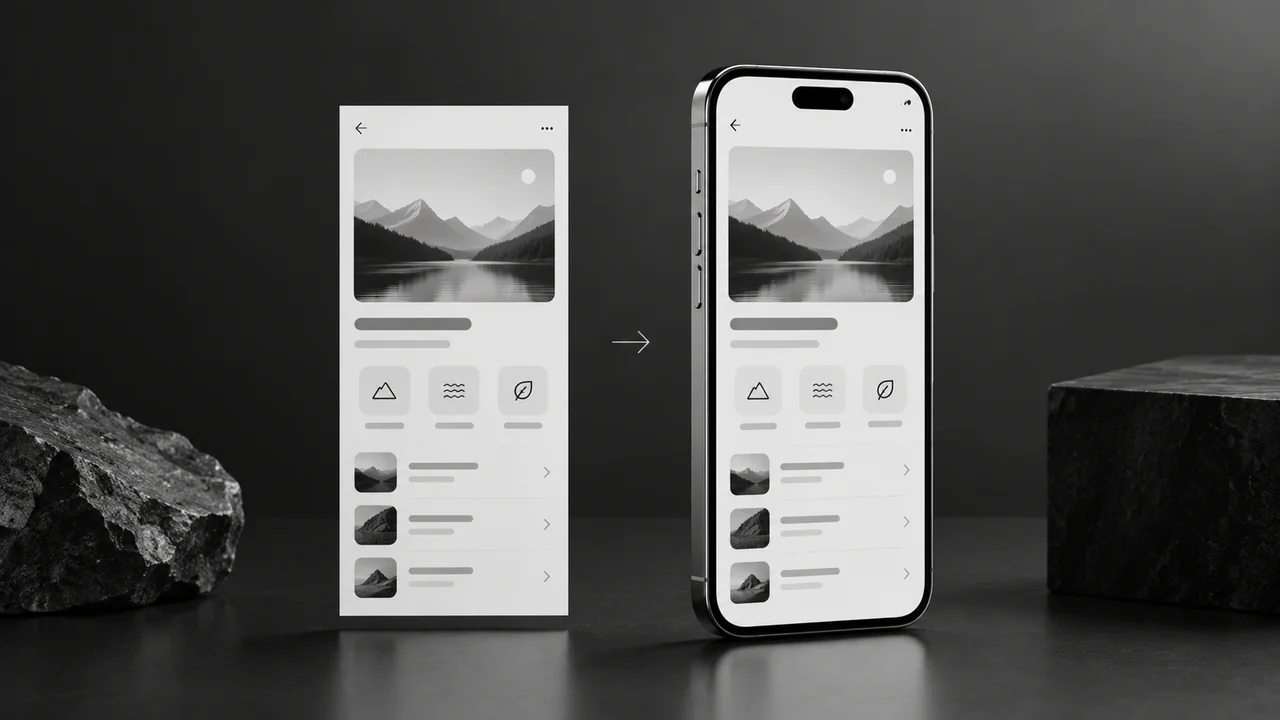
Make a device mockup in the browser without an account: pick a phone, tablet or laptop frame, import a screenshot and export a free PNG. What's free, what needs Pro, and which frames exist.
Short answer: open MockShot Studio in any modern browser, pick a device frame, click its screen to import a PNG, JPG or WebP screenshot, and press Export PNG. You don't need an account for that. 2D still-image exports are free and unlimited, and the PNG keeps a transparent background unless you add one. Things that do need a paid plan: watermark-free 3D stills, 3D video downloads, custom background uploads and separate logo/photo layers.
"Free" and "no signup" get thrown around a lot in this category. Sometimes they mean "free preview, pay to download." Sometimes they mean "three free exports after you make an account." So before writing this I opened the editor in a fresh, logged-out browser on November 4, 2026, dropped a device on a square canvas and exported. The file came down as a 1080 × 1080 PNG with a transparent background and no watermark. No login prompt, no email gate.
What you can do without an account
- Pick from real device categories: phones, tablets, laptops, desktops, displays, watches and smart-home frames.
- Import your own screen: PNG, JPG or WebP up to 20 MB. Click the device screen to import, or use Replace screenshot in Adjust later.
- Fit the image: Cover fills the screen and may crop edges, Contain shows the whole image, Stretch changes proportions. Pick Cover or Contain for anything people need to read.
- Set the canvas: presets include square and portrait social posts, Story (1080 × 1920), Presentation (1920 × 1080), Open Graph (1200 × 630), Product Hunt gallery (1270 × 760), Google Play feature graphic (1024 × 500) and a custom size.
- Add layout and text: several devices on one canvas, built-in backgrounds and gradients, and text you edit on the canvas. Layers lets you reorder, lock, hide or delete objects.
- Export: PNG, JPG, WebP or SVG at the canvas size. JPG fills transparent areas with white, and the SVG wraps a rendered image rather than editable vectors.
Your draft auto-saves locally in the same browser, so you can reload and pick up where you left off. Guest drafts are kept separately from account drafts, and nothing syncs between devices, so export anything you care about.
What "free" doesn't cover
I'd rather you know this before you start than find out at the export button:
| Feature | Free (no account) | Pro / Lifetime |
|---|---|---|
| 2D still exports (PNG, JPG, WebP, SVG) | Unlimited | Unlimited |
| Built-in backgrounds and canvas sizes | Yes | Yes |
| 3D still exports | With a MockShot watermark | Watermark-free |
| 3D animation preview | Yes | Yes |
| 3D video download | No | Yes (720 or 1080 px longest edge) |
| Upload your own background image | No | Yes |
| Separate logo / photo layers in 2D | No | Yes |
Pro is $9.9/month and Lifetime is a one-time $199, per the pricing page as of November 4, 2026. If all you need is a clean 2D device still, you never hit any of this.
Which frames are actually there
This matters more than people think. A mockup that shows an older phone shape next to a "new on iPhone" headline looks off. As of today the catalog includes:
- iPhone: SE, 8 / 8 Plus, 11 series, 13 series, 14 series and iPhone 15 / 15 Plus / 15 Pro / 15 Pro Max
- Android: Google Pixel up to Pixel 8, Samsung Galaxy S20 through S24 Ultra, plus OnePlus 8 Pro and Huawei P40 Pro+
- Tablets: iPad, iPad Air 5, iPad Mini, iPad Pro 11" and 13", Pixel Slate, Surface Pro 3 / 4
- Laptops and desktops: MacBook Air 13", MacBook Pro 14" / 16", Dell XPS 13 / 15, Surface Book, iMac
- Watches: Apple Watch Series 5 / 8, Ultra and Ultra 2, Galaxy Watch 4
There are no iPhone 16 or 17 frames and no browser-window (Chrome/Safari) frames right now. For a website screenshot, a MacBook or iMac frame does the same job. Some 2D frames come from MockUPhone under CC BY 3.0, which the editor credits in the device panel.
A five-minute workflow that holds up
- Clean the screenshot first. Remove real names, emails and order numbers. Blurry source text stays blurry; a bigger canvas won't fix it.
- Set the canvas before you place anything. Choose the destination size (say Open Graph 1200 × 630 for a blog link preview), then add the device. Changing ratios afterwards tends to crop things.
- Use a front-facing frame for UI that needs to be read. Angles look nice but shrink small labels.
- Leave the background transparent if the image is going into a web page that already has its own color. Otherwise pick a quiet gradient.
- Export PNG and open the file. Zoom in on the actual download, not the editor preview. The 100% preview zoom is "fit to workspace," not real pixels.
If you want the step-by-step version with screenshots of each panel, Screenshot to device mockup walks through it in more detail. For backgrounds and export formats specifically, see Mockup backgrounds and export.
Privacy, briefly
Screenshots you import are processed in your browser and saved to its local draft. They aren't pushed to a shared library or a public cloud project. That's handy for pre-launch UI. It doesn't change who owns what, though: you're still responsible for the rights to anything in the composition, and you shouldn't suggest your app supports a device, or is endorsed by its maker, if that isn't true.
When another tool is the better call
A free browser generator isn't the answer to everything. If you need photographic scenes (a phone in someone's hand on a café table), a scene library will look better. If you produce long, polished 3D launch videos every week, a desktop 3D app will give you more control. And if you need a frame for a phone released this autumn, check whether it exists before you plan the visual around it.
For the everyday case, though (screenshot in, clean device mockup out, no account), open the editor and you'll have a PNG in a few minutes.