Free iPhone Mockup Generator (Latest iPhone Frames)
MockShot
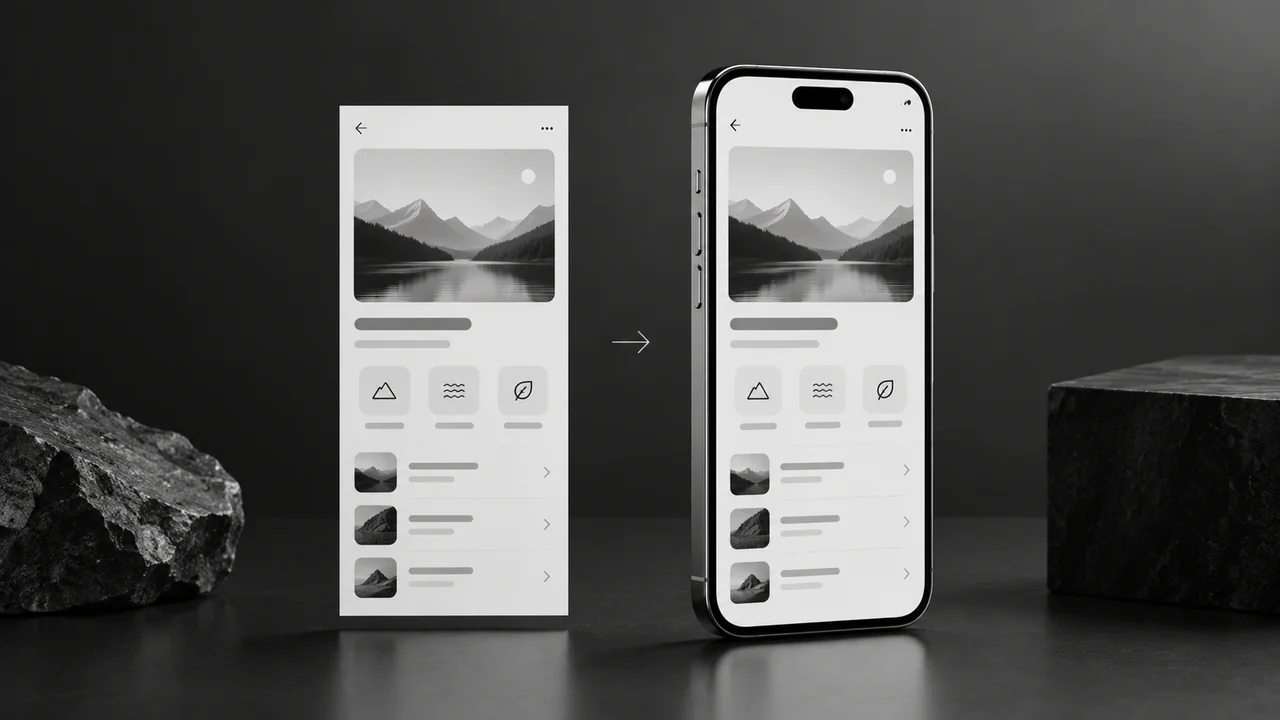
Put an app screenshot into an iPhone frame in the browser — SE through iPhone 15 Pro Max, portrait and landscape. Includes native resolutions so captures fit without awkward cropping.
Short answer: open MockShot Studio, filter Devices to Phones, pick an iPhone frame, click its screen and import your screenshot (PNG, JPG or WebP, up to 20 MB). The 2D phone list currently includes frames from iPhone SE and 8 through the iPhone 15 / 15 Plus / 15 Pro / 15 Pro Max lineup, each in portrait and landscape, with multiple finishes. Set the canvas for where the image is going, add a background if you want one, then export PNG, JPG, WebP or SVG.
That covers the clicks. The rest is how I keep iPhone mockups from looking stretched, cropped or oddly out of date.
Which iPhone frames are there
Here's what the Phones category had for Apple when I checked on November 2, 2026:
| Frame | Orientations |
|---|---|
| iPhone SE, 8, 8 Plus | Portrait, landscape |
| iPhone 11, 11 Pro, 11 Pro Max | Portrait, landscape |
| iPhone 13, 13 Mini, 13 Pro, 13 Pro Max | Portrait, landscape |
| iPhone 14, 14 Plus, 14 Pro, 14 Pro Max | Portrait, landscape |
| iPhone 15, 15 Plus, 15 Pro, 15 Pro Max | Portrait, landscape |
Most of those also ship with more than one color finish, so you can match a product page without hunting for a separate PSD.
Honest catalog note: the newest frames in MockShot today stop at the iPhone 15 series. There is no iPhone 16 or iPhone 17 frame in the editor yet. If you need a launch graphic for a newer phone, either use a 15-series frame and say so in the caption, or wait until that model is added. These are presentation illustrations, not engineering drawings of the latest hardware revision — fine for a landing page or store creative, less fine if you're reviewing a specific bezel change.
Match the screenshot before you drop it in
Wrong aspect ratio is the fastest way to make an iPhone mockup look fake. A screenshot from an older Home-button phone into a Dynamic Island frame (or the reverse) forces Cover to crop or Contain to letterbox.
Apple's tech specs list these native resolutions for the recent full-screen phones (useful as capture targets, not as a claim that every MockShot frame is CAD-accurate):
| Device | Native resolution |
|---|---|
| iPhone 15 / 15 Pro | 2556 × 1179 |
| iPhone 15 Plus / 15 Pro Max | 2796 × 1290 |
| iPhone 16 | 2556 × 1179 |
| iPhone 16 Pro | 2622 × 1206 |
| iPhone 16 Pro Max | 2868 × 1320 |
I still capture on the simulator that matches the frame I'm using. If the only clean capture I have is from an iPhone 16 Pro Max and the catalog frame is a 15 Pro Max, Cover usually works, but I check the top and bottom edges for clipped status bars and tab bars before exporting.
Fit options in the editor:
- Cover — fills the screen, crops overflow. Default for marketing.
- Contain — shows everything, leaves gaps. Fine for internal review, awkward in a hero.
- Stretch — distorts. I almost never use it for UI.
Portrait or landscape for phones
- Portrait is the default for App Store-style shots, onboarding flows and almost every social post. It's also what people expect when they hear "iPhone mockup".
- Landscape earns its keep for video players, maps, games and any feature that only makes sense sideways. Pair it with a wide canvas so the phone doesn't look stranded in empty space.
If you're stacking an iPhone next to an iPad, keep both in the same orientation unless you're deliberately showing two modes. Mixing portrait phone + landscape tablet in one hero works; mixing orientations of the same app screen usually looks like a mistake.
A layout that keeps working for product pages
- Canvas around 16:9 or a tall 9:16 depending on the channel.
- One front-facing iPhone 15 Pro (or 15 Pro Max) as the hero device.
- Optional second phone slightly behind and scaled down, showing the next screen in the flow.
- Short headline — five or six words — not a paragraph.
- Soft gradient or flat brand color from the built-in backgrounds.
Use Add for the second device and Layers to control stacking. Replace swaps the selected frame; it won't give you a duo composition.
App Store screenshots vs marketing mockups
They're related but not the same job. App Store Connect wants exact pixel sizes and a truthful view of your UI. A framed mockup can sit inside a designed store screenshot, as long as the final file matches Apple's dimensions. For the size cheat sheet see App Store screenshot sizes 2026; for counts see how many screenshots the App Store requires. If you also need tablet frames, the iPad mockup generator page lists what's in the Tablets category.
What's free and what isn't
According to the pricing page as of November 2, 2026:
- Free: unlimited 2D still-image exports; device screen uploads in 2D and 3D; built-in backgrounds, gradients and canvas ratios; 3D stills with a MockShot watermark; 3D video preview (no video download).
- Pro ($9.9/mo) or Lifetime ($199): watermark-free 3D stills, 3D video export, custom background uploads, and independent image layers in 2D.
So a clean 2D iPhone mockup for a blog post or landing page is on Free. A rotating 3D clip without a watermark is not.
Quick checklist
- Screenshot at native (or matching) resolution, private data removed
- Frame model honest about what's in the catalog (15-series is the current ceiling)
- Fit mode checked — no clipped Dynamic Island or tab bar
- Canvas set to the destination size
- Export opened at real size before you ship it
If the screenshot is ready, open the editor, choose Phones, and try the same screen on a 15 Pro and a 14 Pro. The better story is usually obvious in under a minute.