Mac App Store Screenshot Sizes (16:10 Cheat Sheet)
MockShot
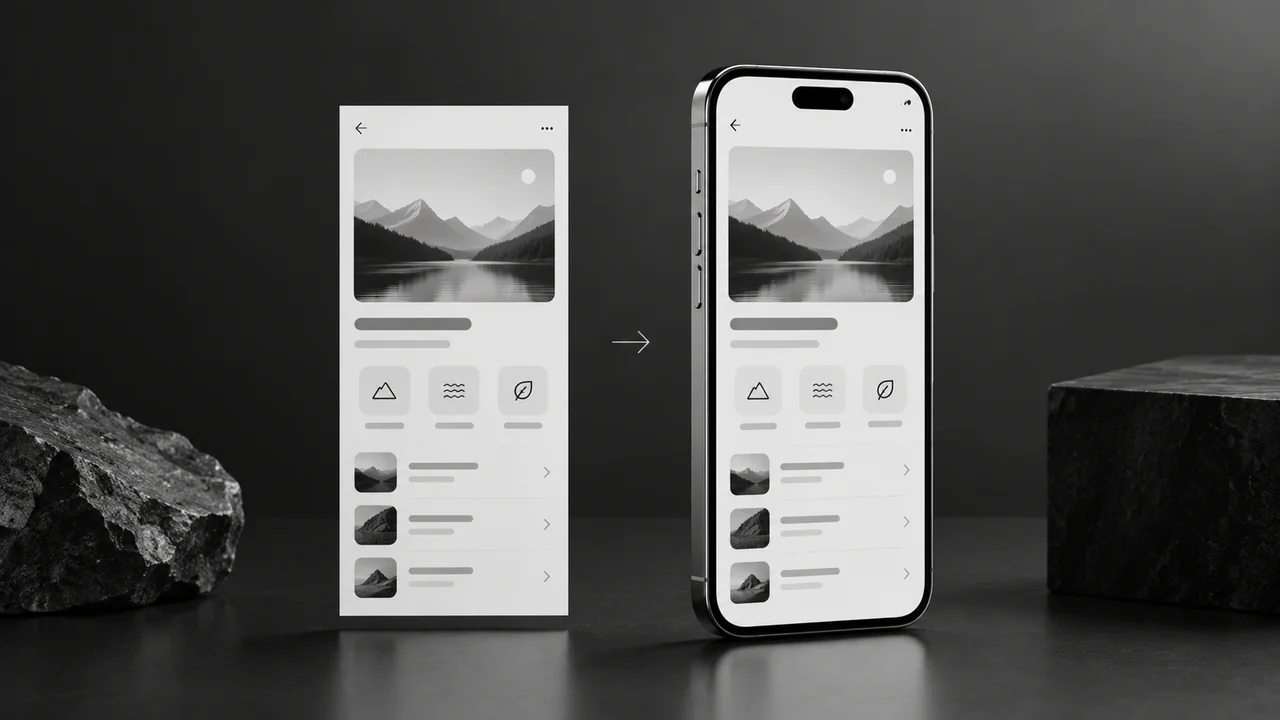
Mac App Store screenshots must be 1280 × 800, 1440 × 900, 2560 × 1600 or 2880 × 1800 (16:10), 1 to 10 per set, no transparency. Checked against Apple's specs.
Mac App Store screenshot sizes, checked against Apple's screenshot specifications on October 29, 2026:
- Accepted sizes (16:10 only): 1280 × 800, 1440 × 900, 2560 × 1600 or 2880 × 1800 pixels
- Required? Yes, screenshots are required for Mac apps
- How many: at least 1, up to 10 per device size
- Files:
.jpeg,.jpgor.png, with no alpha channel or transparency
That's it. Four sizes, one aspect ratio. The trouble usually isn't knowing the numbers, it's getting a Mac window capture to land on one of them.
Which of the four sizes should you pick?
All four are 16:10, so they're the same shape at different resolutions. Apple doesn't say one is preferred. My own choice is 2880 × 1800 or 2560 × 1600, simply because Mac screens are sharp and a 1280 × 800 screenshot can look soft when someone views it on a Retina display. The smaller sizes are still valid if that's what you have.
| Size | Notes |
|---|---|
| 1280 × 800 | Smallest accepted. Fine for simple UIs |
| 1440 × 900 | A bit more room for detail |
| 2560 × 1600 | Retina-class, what I'd use by default |
| 2880 × 1800 | Largest accepted |
Notice what's not on the list: 1920 × 1080, or whatever odd size your current monitor happens to be. A 16:9 capture won't fit without cropping or padding.
Why your screenshot gets rejected
The upload checks exact pixels. These are the three mistakes I run into most:
- A raw window capture. Pressing Cmd-Shift-4 and clicking a window gives you that window's size plus a shadow, which is almost never one of the four sizes. And the shadow comes with transparency.
- Transparent PNGs. Window captures with shadows, or exports from a design tool with an empty background, often carry an alpha channel. Apple doesn't accept alpha or transparency in screenshots. Flatten onto a solid background.
- Right ratio, wrong size. 1920 × 1200 is 16:10 too, but it's not in Apple's list. Stick to the four exact sizes.
How I'd make a clean Mac set
- Decide on three to five screens. You can upload up to 10, but a handful of strong ones usually says more. Lead with the main window doing the main job.
- Capture without the shadow. In macOS, holding Option while clicking a window in the Cmd-Shift-4 then Space mode skips the shadow. Or capture the full screen and crop.
- Place the capture on a 16:10 canvas at one of the four sizes, with a solid or gradient background. This is also where you add a short caption if you want one.
- Export as JPG, or PNG without transparency.
- Check the file's pixel size in Finder (Get Info) or Preview before uploading.
Mac versus iPhone and iPad
Mac is the simplest platform in Apple's table: no device classes, no portrait versus landscape choice, just four 16:10 sizes. iPhone and iPad have many more classes and separate required sizes. The full list for every Apple device is in the App Store screenshot sizes cheat sheet, and if you're wondering how many to make, see How many screenshots does the App Store require?.
FAQ
What size are Mac App Store screenshots?
One of 1280 × 800, 1440 × 900, 2560 × 1600 or 2880 × 1800 pixels, all with a 16:10 aspect ratio.
Are screenshots required for Mac apps?
Yes. Apple's specification lists screenshots as required for Mac apps.
How many Mac App Store screenshots can I upload?
Between 1 and 10 per device size.
Can Mac App Store screenshots be transparent?
No. Apple doesn't accept alpha channels or transparency. Flatten the image onto a background before export.
Can I use 1920 × 1080 for the Mac App Store?
No. That's 16:9, and it isn't one of Apple's accepted Mac sizes.
Sources
- Apple: Screenshot specifications, checked October 29, 2026. The sizes, the requirement and the file rules come from that page. The size recommendation and the workflow are my own habits, not Apple rules.
Laying out the screenshots
The fiddly step is turning a window capture into an exact 16:10 image with a clean background. MockShot Studio runs in the browser: drop in a screenshot, pick a layout and background, and download a PNG or JPG. Whatever you use, check the exported file is exactly one of the four Mac sizes and has no transparency before you upload.