Prepare Safe Demo Data Before Making a Product Screenshot
MockShot
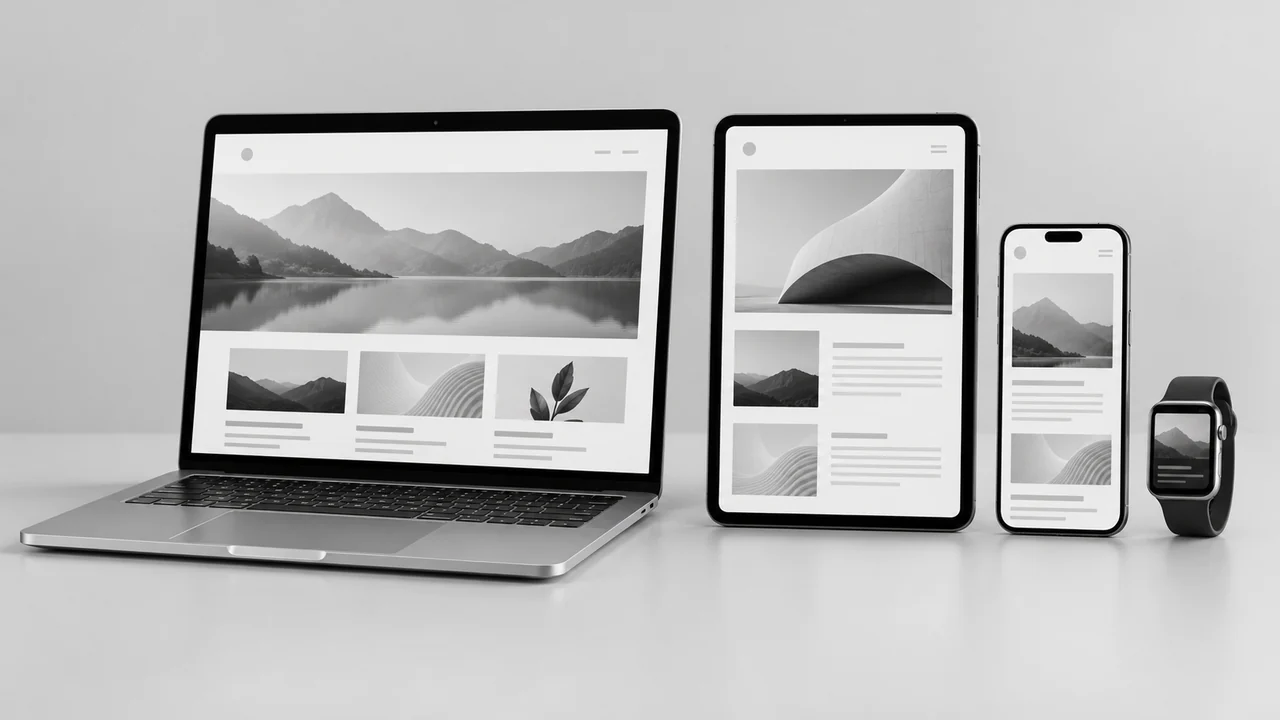
Replace real customer records with consistent synthetic examples, review every visible surface and understand the limits of local screenshot editing.
A screenshot can expose more than the main application screen. A browser profile, account menu, calendar invitation, notification or small table cell can reveal information that was never intended for a public launch image. The safest useful screenshot is usually one prepared from a separate demonstration environment, not one repaired after capturing a live customer account.
This is a practical publishing workflow, not a security certification or a substitute for your organisation's data-handling rules. MockShot composes images and renders device mockups; it is not a redaction or confidential-document sanitisation tool.
Decide what the image needs to prove
Write down the feature you want to demonstrate and the minimum data needed to explain it. A scheduling screenshot may need several tasks and dates, but it does not need a real client's email address. A billing dashboard may need plausible amounts to show layout, but it does not need a real invoice, bank account or payment reference.
Use a separate demo account or a local test environment when available. Avoid giving a demo environment unnecessary access to real records just to populate a screenshot. If the real product cannot be shown safely, take time to prepare an example rather than assuming that a device frame will hide the risky areas.
Build a small, coherent synthetic dataset
Create fictional names, projects and messages that describe the feature clearly. Mark example results as demonstration data when a viewer might otherwise interpret them as actual customer outcomes. Do not invent ratings, testimonials, revenue or performance improvements and present them as evidence.
For a task app, a useful dataset might contain a project called “Launch checklist”, three ordinary preparation tasks and one completed item. Use the same project and task names in the phone and desktop captures. If one screenshot shows Monday and another shows a weekly summary, make the dates agree. Consistency improves the explanation without requiring genuine personal records.
Keep the dataset small. A dense table containing dozens of synthetic rows can be just as unreadable as a real dashboard. Populate enough material to demonstrate hierarchy, selection and the intended result, then remove unrelated sections from the planned composition.
Review the entire capture surface
Before capturing, close notifications and irrelevant tabs, review the signed-in profile and inspect side panels. Check file names, comments, search history, avatars, connection details and any status bar that will remain visible. A screenshot crop should be chosen for a clear story, not used as the only assurance that private information is gone.
If you must alter an existing capture, do the preparation in an appropriate image tool before importing it. Use a deliberate, irreversible flattened replacement for sensitive pixels where your process requires redaction. Do not assume a blur is sufficient or that moving a visible layer out of the composition deletes the original source file. Open the final prepared image independently and inspect it again.
MockShot's independent logo and image layers are composition objects, not a secure redaction layer. Hiding an object, locking a layer or placing a rectangle above a screenshot does not certify that the underlying source, browser draft or original upload has been erased. Keep confidential inputs out of the editor in the first place.
Compose without undoing the safety review
Import the reviewed screenshot through the device screen. When changing from Contain to Cover, or changing the crop position, inspect the whole visible screen again. A different crop can expose a region that was not visible in the previous composition. Review every device independently in a multi-device layout; selecting one source does not replace every screen automatically.
If you use 3D motion, scrub through the entire animation. A pose that looks safe in the first frame can reveal more of the screen later. Check separately imported images and background photos as well as the main device. Use only material you are allowed to publish, and avoid implying endorsement by a person or manufacturer without a basis for doing so.
Understand where the working material lives
Local editor imports are processed in the browser and can be stored in the browser's local draft. They are not automatically published to the shared asset library, but local processing does not mean that the browser retains no copy. Guest and signed-in workspaces are separate, and a local draft is not a cross-device cloud backup.
Use your browser's site-data controls when you need to remove locally stored work, and retain your safe source files separately. Signing out should not be treated as proof that every browser copy has been erased. Account storage uploads and administrator library tools are separate from local editor import. The website's accounts, contact messages and operational services have their own handling described in the privacy policy and cookie policy.
Make the final review repeatable
Open the actual downloaded image or video rather than relying only on the editor preview. Check the largest readable version for private details, then check a small version for clarity. Review every language variant because translated demo text, a replacement screenshot or a different device can reintroduce information that was absent from the first version.
Keep a short release note for the asset: which demonstration dataset was used, which source captures were reviewed and where the output will be published. This is especially useful when several people create a launch kit. It is easier to repeat a clear review process than to remember whether an old capture was safe.
For composition steps, use the screenshot-to-device workflow. For a rotating model, use the 3D video guide. Neither workflow replaces the source-data review that happens before the first import.