App Store Screenshot Generator: Plan and Export Store Screenshots
MockShot
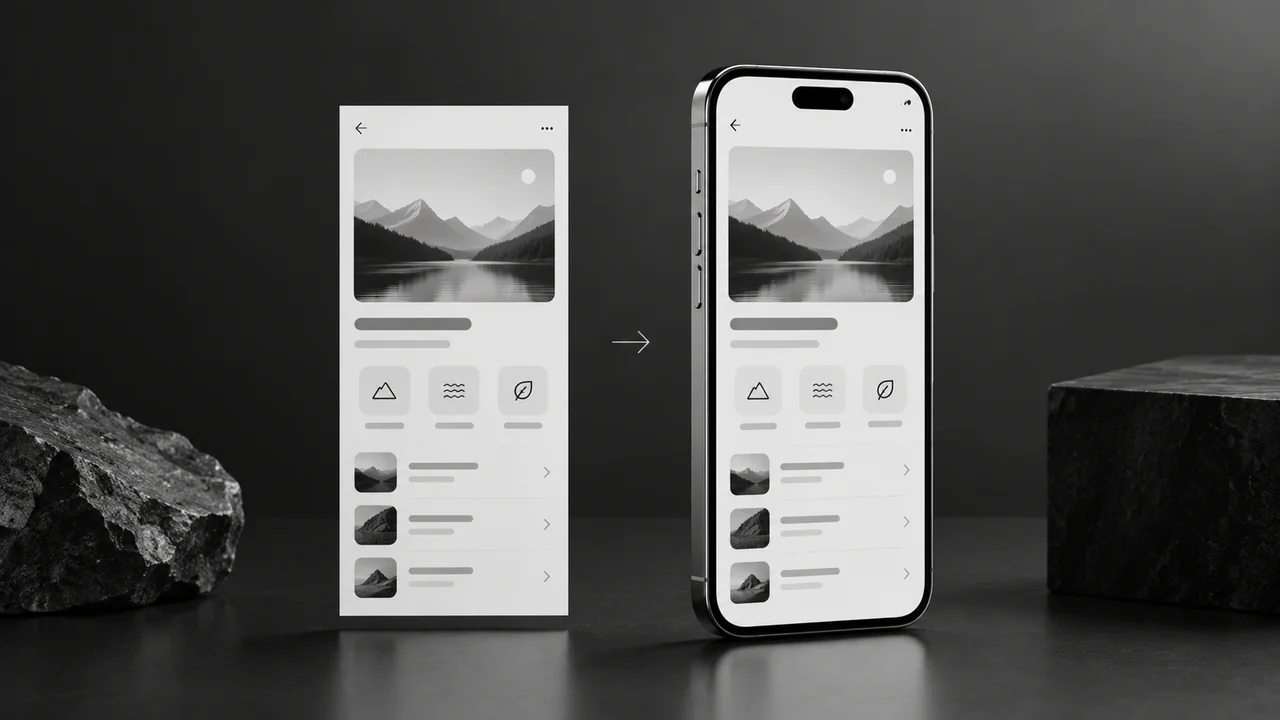
Plan App Store screenshots in the browser with device frames and layouts, then export PNG or JPG files at the pixel sizes App Store Connect accepts.
How to make App Store screenshots:
- Capture the app UI from Simulator or a device. Use a screen you will actually ship, with demo data you are willing to publish.
- Confirm the required pixel sizes. An iPhone app needs at least one screenshot for iPhone with Dynamic Island (medium display): portrait 1179 × 2556 or 1206 × 2622. If the app supports iPadOS, also upload the iPad 13-inch display: portrait 2064 × 2752 or 2048 × 2732. Landscape swaps those dimensions. File rules, optional classes, and the April 2027 iPhone Duo note are in the App Store screenshot sizes cheat sheet.
- Place the capture in a device frame, add a headline or background when you want a marketing slide, set the canvas to an accepted size, and export a PNG or JPG. Repeat for the next slot when that size needs its own file.
mockshot.si is a browser tool for device mockups and screenshot layouts (2D and 3D frames; video download on Pro or Lifetime). Use it to plan framed previews for a listing, site, or ads, then upload files that match the sizes App Store Connect accepts. Open MockShot Studio when you are ready to lay out a set.
How it works
The editor exports the current canvas. It does not upload to App Store Connect, and it does not pack every device class into one ZIP.
- Import the screenshot through the device screen. MockShot accepts PNG, JPG, and WebP files up to 20 MB. The screenshot-to-device workflow covers Cover, Contain, and Stretch.
- Choose an iPhone or iPad frame that matches the capture. Phones, tablets, and other categories are in the device panel.
- For a marketing slide, add a short headline outside the screen and pick a built-in background. Leave the interface readable after the store shrinks the image.
- Set the canvas, export PNG or JPG, and open the file. Confirm the pixel size and, for a store upload, the lack of transparency.
Built-in App Store presets are a starting point. They include 1290 × 2796 (labeled iPhone 6.7″), an optional Dynamic Island (large) size, and 2048 × 2732 (labeled iPad 12.9″), which is also one accepted 13-inch size. The required iPhone class, 1179 × 2556 or 1206 × 2622, is not in that preset list. Use a custom canvas for a missing size, then check it against the sizes cheat sheet.
App Store size checklist
Checked against Apple’s screenshot specifications on October 26, 2026. Full tables live in the sizes guide.
| Device class | Portrait (px) | Required? |
|---|---|---|
| iPhone with Dynamic Island (medium display) | 1179 × 2556 or 1206 × 2622 | Yes, if the app runs on iPhone |
| iPad 13" display | 2064 × 2752 or 2048 × 2732 | Yes, if the app runs on iPad |
Store uploads are .jpeg, .jpg, or .png, with no alpha channel, and 1–10 images per device size. Landscape uses the swapped dimensions. iPhone Duo screenshots (outer 1398 × 2034, inner 2007 × 2853, landscape swapped) are required starting April 2027 for apps that use the iOS 27.1 SDK or later. Details are in the sizes cheat sheet.
Before you export
- The capture matches UI you will ship.
- The canvas is an accepted App Store Connect size, not an arbitrary marketing size.
- The store file is JPEG, JPG, or PNG without transparency.
- Portrait or landscape matches the listing you intend to upload.
- Device frames and heavy marketing chrome were checked against the current App Store Review Guidelines.
- Frames used only on a site or in ads stay out of the store set when the listing needs a cleaner UI shot.
The background and export guide is the practical check for transparency and sharpness. JPG export is flattened. A PNG can still carry transparency, so inspect the file if the destination forbids alpha.
What you can do in the browser
MockShot runs in the browser, with 2D and 3D device frames, a canvas size, and still export. Downloading a 3D rotation video requires an active Pro subscription or Lifetime access. Previewing the motion is separate from that download. The 3D rotation guide covers the recording limits. A clip can help a site, a launch post, or an ad. App Store Connect still wants still images.
You download the file and upload it in App Store Connect yourself. Captions are text on the canvas, not a multi-locale ASO pipeline. For direct console upload or caption sets in many languages, use a tool built for that and still check Apple’s sizes.
Who it is for
Indie iOS and iPadOS developers can assemble a first listing, or a refresh, without rebuilding a design file each release. Small teams can reuse the same frames on the site and while planning the store set. A heavy brand system still belongs in Figma or a similar editor.
How this compares
| Need | mockshot.si | Typical browser maker | Typical ASO product |
|---|---|---|---|
| Device frames in the browser | Yes | Yes | Yes |
| 3D frames and video | 3D frames in the browser. Video download on Pro or Lifetime. | Often stills only | Uncommon |
| Upload to App Store Connect | No. You download the file and upload it. | Uncommon | Sometimes |
| Captions in many languages | Text on one canvas | Some tools | Often paid |
| Required 2026 sizes | Sizes cheat sheet | Freshness varies | Freshness varies |
FAQ
How do I make App Store screenshots?
Capture the UI, set the canvas to a required class, export PNG or JPG without transparency, and upload the file in App Store Connect. Pixel tables are in the sizes cheat sheet. MockShot Studio is where you place the frame before that export.
What sizes does App Store Connect require in 2026?
Dynamic Island (medium) for iPhone: portrait 1179 × 2556 or 1206 × 2622. The 13-inch iPad, when the app supports iPadOS: portrait 2064 × 2752 or 2048 × 2732. The sizes cheat sheet lists the other classes, including iPhone Duo.
Can I put device frames or bezels in App Store screenshots?
Frames are fine on a site or in an ad. For the listing, follow the App Store Review Guidelines and keep the UI accurate.
Is there a free App Store screenshot generator?
Many browser tools advertise one. Open MockShot in the browser to frame a screenshot and export a still. This page does not state a free quota or a watermark policy. Video download requires Pro or Lifetime.
How does this compare with Photoshop or Figma?
Use MockShot when the screenshots already exist and you need a frame plus an export size. Use Figma or Photoshop when the brand system or a large localization set is the work. Either way, the store file still has to match Apple’s pixel sizes.
Do you export Google Play sizes too?
Phone and tablet frames are available, and the editor has Google Play canvas presets at 1080 × 1920 and 1024 × 500. Check Google’s current rules before upload. A Play size cheat sheet is not on this site yet.
Does MockShot upload directly to App Store Connect?
No. Download the PNG or JPG and upload it in App Store Connect. The editor does not submit the version.
What about 3D rotating mockup videos?
Pro or Lifetime can download a rotation after you have a readable still. Use it for a site, a launch post, or an ad. The store listing still needs static screenshots. Limits are in the 3D rotation guide.
Sources
- Apple — Screenshot specifications, checked October 26, 2026
- Apple — App Store Review Guidelines
- App Store screenshot sizes 2026
- mockshot.si
Lay out the set
Ready to lay out framed screenshots? Open mockshot.si in your browser for device frames and screenshot layouts (2D and 3D; video export on Pro or Lifetime). Lock the pixel sizes with the App Store sizes cheat sheet first, then export files that match App Store Connect’s accepted dimensions in MockShot Studio.