Android Phone Mockup Generator (Pixel and Samsung Frames)
MockShot
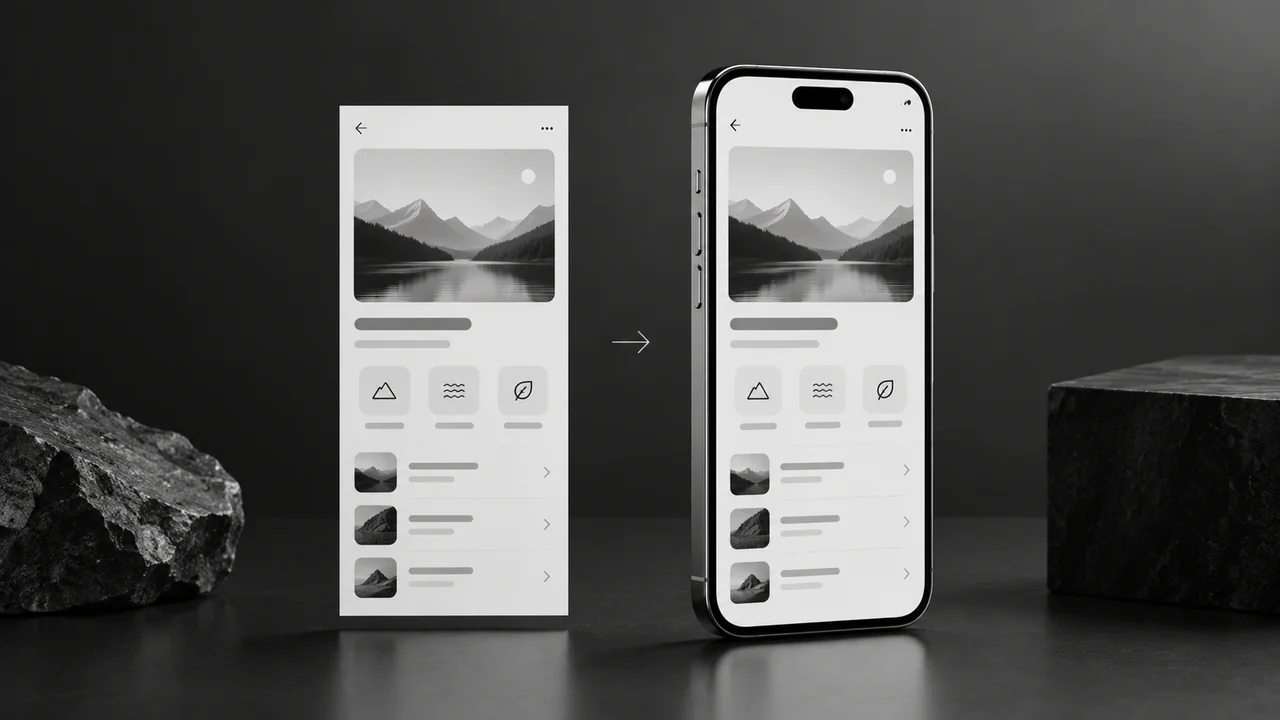
Drop an Android screenshot into Pixel or Samsung Galaxy frames in the browser, portrait or landscape. Catalog covers Pixel through Pixel 8 and Galaxy up to S24 Ultra.
Short answer: open MockShot Studio, filter Devices to Phones, pick a Pixel or Samsung frame, click its screen and import your screenshot (PNG, JPG or WebP, up to 20 MB). The Android side of the 2D list currently covers several Google Pixel and Samsung Galaxy models, each in portrait and landscape. Set the canvas for the destination, add a background if you want one, then export PNG, JPG, WebP or SVG.
That's the workflow. Below is what actually matters when the mockup has to look like Android on purpose — not like an iPhone wearing a different color.
Which Android frames are there
Here's what the Phones category had for Google and Samsung when I checked on November 2, 2026:
Google Pixel
| Frame | Orientations |
|---|---|
| Google Pixel | Portrait, landscape |
| Pixel 4, Pixel 4 Xl | Portrait, landscape |
| Pixel 5 | Portrait, landscape |
| Pixel 7 | Portrait, landscape |
| Pixel 8 | Portrait, landscape |
Samsung Galaxy
| Frame | Orientations |
|---|---|
| Galaxy Y, S Duos, S4 | Portrait, landscape |
| Galaxy Note 5 | Portrait, landscape |
| Galaxy S20, S20+, S20 Ultra | Portrait, landscape |
| Galaxy S21, S21+, S21 Ultra | Portrait, landscape |
| Galaxy S24 Ultra | Portrait, landscape |
The newest Samsung frame in the catalog today is Galaxy S24 Ultra. On the Pixel side, the list tops out at Pixel 8. Older models are still useful when you're matching a case study or an older device screenshot.
One honest caveat: these are presentation illustrations, not engineering drawings of the latest hardware revision. Bezels and camera islands won't always match a phone that launched last month. For a Play Store feature graphic or a landing page that rarely matters. For a hardware review of a specific Pixel or Galaxy, it does.
Fit the screenshot to the phone you picked
Android screens are not one ratio. A tall Pixel capture dropped into a shorter older Galaxy (or the reverse) will crop or letterbox. I don't invent native pixel sizes here unless I've checked the manufacturer's tech page for that exact model — ratios and visual fit matter more than memorizing every resolution.
Practical approach:
- Capture on the emulator or device that matches the frame you're about to use.
- If you only have one clean capture, start with Cover, then nudge the crop so navigation bars and status icons aren't clipped.
- Avoid Stretch for UI. Distorted circular avatars and oval buttons are an instant tell.
Fit modes again, because they save time:
- Cover — fills the screen, crops overflow. Best default for marketing.
- Contain — full screenshot, possible gaps. OK for internal QA.
- Stretch — warps the UI. Skip it for product shots.
When to pick Pixel vs Samsung
- Pixel reads as "stock Android / Google" — good for Material You demos, Pixel-only features, or a clean developer aesthetic.
- Samsung reads as "what a lot of users actually hold" — useful for Galaxy-heavy audiences, DeX-adjacent stories, or when your analytics say most installs are Samsung.
If the article or landing page never names a brand, either works. If it does ("works great on Pixel 8"), match the frame to the claim. Mismatched hardware in the hero is the kind of detail commenters notice.
Portrait, landscape and store creatives
Portrait is the default for phone UI and for most Google Play phone screenshots. Landscape earns a place for media apps, maps, games and foldable-style demos when you have a wide canvas.
Google Play's own size rules are separate from "pretty mockup". If you're building the actual store listing assets, start with Google Play screenshot sizes 2026 and keep the framed device inside a correctly sized canvas when you use one. A marketing mockup for a blog or Product Hunt gallery can be freer about canvas ratio; the store listing cannot.
A simple duo layout that reads as Android
- Wide 16:9 canvas (or tall 9:16 for Stories / Reels).
- Pixel 8 or Galaxy S24 Ultra as the front device, portrait.
- Optional second phone behind it showing the next screen.
- Quiet built-in gradient — loud backgrounds fight Material surfaces.
- One short headline. Android screenshots already carry a lot of chrome; don't add a paragraph on top.
Build the second phone with Add, not Replace. Use Layers so the front device stays on top and the background doesn't keep getting selected.
If you also need tablets or iPhones in the same set, the iPad mockup generator and the iPhone frames under Phones cover those. Mixing one Android phone with one iPhone in a cross-platform hero works when both show the same feature.
What's free and what isn't
According to the pricing page as of November 2, 2026:
- Free: unlimited 2D still-image exports; device screen uploads for 2D and 3D; built-in backgrounds, gradients and canvas ratios; 3D stills with a MockShot watermark; 3D video preview without download.
- Pro ($9.9/mo) or Lifetime ($199): watermark-free 3D stills, 3D video export, custom background uploads, and independent image layers in 2D.
A flat 2D Pixel or Samsung mockup for a docs page or launch blog post sits on Free. Watermark-free 3D and custom photo backgrounds do not.
Quick checklist
- Capture matches the frame family (Pixel ↔ Pixel, Galaxy ↔ Galaxy) when you can
- Catalog ceiling respected: Pixel 8 and Galaxy S24 Ultra are the current top models here
- Fit mode checked — no clipped gesture bars
- Canvas sized for the real destination (Play listing vs social vs blog)
- Downloaded file inspected at 100% zoom before publish
If you've got an Android screenshot ready, open the editor, filter Phones, and try the same screen on Pixel 8 and Galaxy S24 Ultra. Whichever frame disappears into the story is the one to keep.