Google Play Screenshot Sizes 2026: Phone, Tablet, Wear OS and Feature Graphic (Cheat Sheet)
MockShot
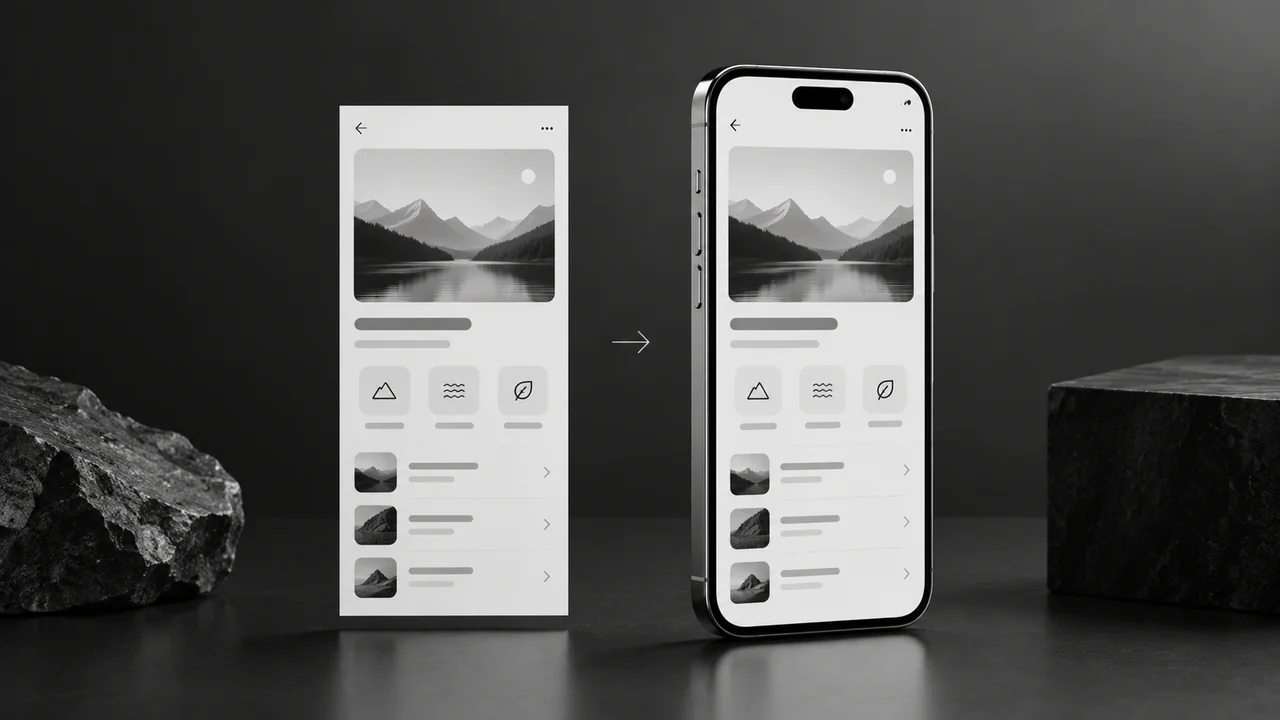
Exact Google Play Console screenshot rules for 2026: minimum and maximum pixels, aspect ratio, the 1024 × 500 feature graphic, tablet, Wear OS, TV, Automotive and XR notes, checked against Play Help.
Google Play store listing graphics, checked against Google's Play Console Help page on preview assets on October 27, 2026:
- Screenshots to publish: at least two, counted across device types. You can add up to 8 per device type.
- Format: JPEG or 24-bit PNG with no alpha. No transparency.
- Dimensions: every side between 320 px and 3840 px, and the long side can't be more than twice the short side.
- To be eligible for the big screenshot-based recommendation rows: apps need at least four screenshots at 9:16 portrait (min 1080 × 1920) or 16:9 landscape (min 1920 × 1080). Games need at least three of one orientation at those same minimums.
- Feature graphic (required): 1024 × 500 px, JPEG or 24-bit PNG, no alpha.
- App icon (required): 512 × 512 px, 32-bit PNG with alpha, max 1024 KB.
If you only remember one line: export phone screenshots at 1080 × 1920, opaque, at least four of them, plus a 1024 × 500 feature graphic.
Why I keep a Play cheat sheet next to the Apple one
Every time I prep a release I end up with the Apple sizes open in one tab and Google's help page in another, scrolling for the one number I forgot. Google's page is thorough, but it mixes hard upload rules, "highly recommended" rules and per-device notes in one long scroll. This is the short version, with the device-specific bits split out so you can skip what you don't ship.
One thing that trips people up: Google publishes ranges and ratios, not a fixed pixel list like Apple does. A 1242 × 2208 phone screenshot uploads fine. It's inside 320–3840 and the ratio is under 2:1. But it won't count toward the large-format recommendation rule, because that rule asks for 9:16 at 1080 px or more on the short side.
The phone screenshot rules, in plain words
| Rule | What Google says | What it means in practice |
|---|---|---|
| Minimum count to publish | 2 screenshots across device types | Two phone shots will get a listing live |
| Maximum count | 8 per device type | Phone, 7" tablet, 10" tablet etc. each get their own 8 |
| File type | JPEG or 24-bit PNG (no alpha) | Flatten transparent PNGs before upload |
| Size range | 320 px to 3840 px per side | 4K-wide landscape shots are over the limit |
| Aspect limit | Long side ≤ 2× short side | Very tall scrolling captures get rejected |
| Recommendation eligibility (apps) | 4+ screenshots, 9:16 (min 1080 × 1920) or 16:9 (min 1920 × 1080) | Treat this as your real target |
| Recommendation eligibility (games) | 3+ screenshots, 16:9 (min 1920 × 1080) or 9:16 (min 1080 × 1920) | Show actual gameplay, not just cutscenes |
Google also asks that screenshots show the real in-app experience, and it allows stylized screenshots that spread UI across several images. It does ask you to keep the UI front and center in the first three. It also warns against small text and busy backgrounds, which basically disappear on a phone. And there's a field for alt text on each screenshot now. Fill it in. It takes two minutes and helps screen-reader users.
Feature graphic: 1024 × 500, and why it's annoying
The feature graphic is required to publish. It shows up as the cover of your preview video if you have one, and in large-format collections of apps and games.
- Size: exactly 1024 × 500 px
- Format: JPEG or 24-bit PNG, no alpha
The design rules matter more than the size. Google says not to repeat prominent branding that looks like your app icon, since the two appear side by side. It also says not to add store badges or icons like the Google Play badge. My own habit: keep anything important away from the edges and the middle-bottom area, because a play button sits on top of the graphic when there's a preview video. Google doesn't publish an official safe-zone pixel number for this, so I just test it by looking at the listing on an actual phone.
Tablets and Chromebooks (large screens)
For tablets and Chromebooks, Google's large-screen section says:
- Add a minimum of 4 screenshots.
- Upload screenshots between 1,080 and 7,680 px.
- Use 16:9 for landscape or 9:16 for portrait.
- Leave out extra text that isn't part of the app, since it can get cut off on Play homepages on some screen sizes.
That 7,680 px figure sits in the large-screen section, while the general screenshot rule says 3840 px max. Google doesn't explain how the two interact. To stay safe, I keep tablet exports at or under 3840 px on the long side (2160 × 3840 portrait is plenty), which satisfies both. Also note Google doesn't publish exact tablet pixel sizes like "1600 × 2560". Those are conventions from other guides, not requirements.
Wear OS, TV, Automotive and XR
These are the ones that cause surprise rejections, so here are the exact rules from the same page:
| Device type | Rule |
|---|---|
| Wear OS apps and watch faces | At least 1 screenshot, 1:1, min 384 × 384. Interface only: no device frames, no extra text, graphics or backgrounds, no transparent backgrounds or masking |
| Android TV | At least 1 TV screenshot to publish, plus a required TV banner (1280 × 720, JPEG or 24-bit PNG, no alpha) |
| Android Automotive OS | Required unless your app is in a parked app category. If you provide them: at least 2 portrait at 800 × 1280 and 2 landscape at 1024 × 768, using the generic system UI, not a specific car brand's |
| Android XR | 4 to 8 screenshots, PNG or JPEG, up to 8 MB each, 8:5 ratio. Recommended 3840 × 2400 (min 1920 × 1200) |
The Wear OS rule is the one to underline: if you're used to putting every screenshot in a pretty device frame, don't do it for watch listings. Google says so in plain words.
Preview video
It's optional, but Google strongly recommends it for games, and some parts of Play only show games that have one. You paste a YouTube URL, not a playlist or channel link, with no timecode parameters. The video has to be public or unlisted, with ads turned off, and not age-restricted. Only the first 30 seconds autoplay (muted), so put the real app on screen early. Google suggests getting to the core features within the first 10 seconds.
A quick export checklist
- Phone: 4 or more portrait shots at 1080 × 1920 (or larger, still 9:16 and ≤ 3840 px).
- Every file opaque. Open one in your image viewer and check that there's no alpha channel.
- Feature graphic at 1024 × 500, no store badges, no icon copy-paste.
- Icon at 512 × 512, PNG with alpha, under 1024 KB.
- Wear OS: bare 1:1 interface captures, no frames.
- Alt text for each screenshot.
- Upload and look at the preview in Play Console before you hit publish.
FAQ
What size should Google Play screenshots be?
Anything from 320 to 3840 px per side with the long side no more than twice the short side will upload. To qualify for large-format recommendations, use 1080 × 1920 portrait or 1920 × 1080 landscape (or bigger at the same ratio), with at least four screenshots for apps.
How many screenshots does Google Play require?
Two to publish, counted across device types. Up to eight per device type. Four or more is the practical number for apps if you want to be eligible for recommendation rows.
What is the Google Play feature graphic size?
1024 × 500 px, JPEG or 24-bit PNG without alpha. It's required to publish.
Can Google Play screenshots be transparent PNGs?
No. Screenshots and the feature graphic must be JPEG or 24-bit PNG with no alpha. Only the app icon is a PNG with alpha.
Can I use device frames in Play screenshots?
For phones and tablets Google doesn't ban frames, but it asks that screenshots show the actual in-app experience. For Wear OS it explicitly says no device frames.
Where are the App Store sizes?
See the App Store screenshot sizes 2026 cheat sheet. If you're doing both stores at once, planning App Store and Google Play screenshots covers how to tell one story across them.
Sources
- Google Play Console Help: Add preview assets to showcase your app, checked October 27, 2026. Every number in this article comes from that page except where I've said it's my own habit.
Making the screenshots themselves
Once the numbers are settled, the slow part is the layout: a headline, the screen and a background, done four to eight times without the set looking random. I use MockShot Studio for that. Set a custom 1080 × 1920 canvas, drop your capture into the device screen and export an opaque JPG. Do the same at 1024 × 500 for the feature graphic. Skip the frame for Wear OS, though. Google wants the bare interface there.