Apple Watch Mockup Generator (Ultra 2 and Series 8 Frames)
MockShot
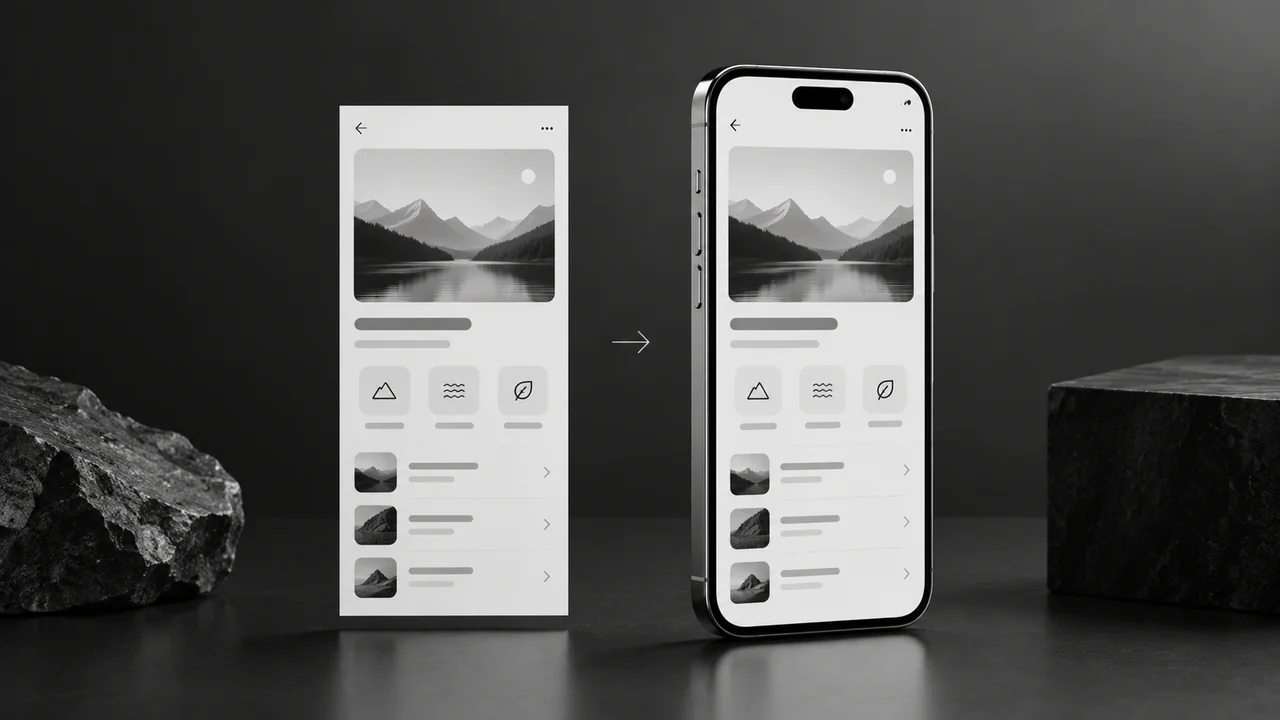
Drop a watchOS screenshot into a real Apple Watch frame in the browser — Ultra, Ultra 2, Series 8 and more. When framed mockups help vs when store listings need frameless 1:1.
Short answer: open MockShot Studio, pick an Apple Watch frame (Ultra, Ultra 2, Series 8 41mm/45mm, Series 5, or older Watch sizes), click the screen, drop in your watchOS screenshot, then export a 2D PNG or JPG. No account needed for unlimited free 2D stills. Use a framed mockup for landing pages and social; use a frameless 1:1 screenshot when a store listing forbids device chrome (same rule Google Play applies to Wear — see Wear OS screenshot requirements).
Searching for an Apple Watch mockup generator usually means one thing: get a real watch bezel around a watchOS capture without opening Photoshop. This guide covers which Watch frames MockShot has today, how to place a screenshot cleanly, and when a framed watch is the wrong asset for App Store / Play uploads.
Facts below are as of November 6, 2026.
Which Apple Watch frames are available
MockShot's device catalog includes these enabled watch frames (name them exactly as listed — do not assume every marketing name ships as a frame):
| Frame | Typical use |
|---|---|
| Apple Watch Ultra / Ultra 2 | Outdoor / rugged app marketing, larger screen captures |
| Series 8 41mm / Series 8 45mm | Mainstream watchOS app landing pages |
| Series 5 40mm / Series 5 44mm | Older installs still common in screenshots |
| Watch 2 / 38mm class | Legacy comparisons, "works on older watches" stories |
| Samsung Galaxy Watch 4 / Sony SmartWatch 3 | Android Wear / Wear OS marketing side-by-side |
Not in the catalog (even if you see Series 10 strings elsewhere in UI code): Apple Watch Series 10, Series 9, and SE. If you need those bezels specifically, either wait for a catalog update or use the closest Series 8 / Ultra 2 frame and say so in the caption. Inventing a "Series 10 mockup" label on an older bezel confuses reviewers and users.
Phones in the same editor top out at iPhone 15 Pro Max / Pixel 8 / Galaxy S24 Ultra — there are still no iPhone 16/17 frames and no browser-window frames. Watches sit alongside iPads, MacBooks, Dell XPS, iMacs and TVs in the same device picker.
How to make an Apple Watch mockup in the browser
- Open the editor in a modern browser. Guest mode is enough for 2D stills.
- Set the canvas size first — square for Instagram, 1200 × 630 for Open Graph, Story vertical, or a custom size that matches your landing hero. Changing ratio after you place the watch can crop the crown or band.
- Add an Apple Watch device from the catalog (Ultra 2 or Series 8 45mm are the usual picks for modern watchOS UI).
- Click the watch screen and import a PNG, JPG or WebP screenshot from Simulator, a device, or design export.
- Choose Cover vs Contain so complications and status bar text stay readable — round corners hide more than a phone does.
- Optional: add a solid or gradient canvas background for social; leave the canvas empty if you want a transparent PNG.
- Export as PNG (keeps transparency), JPG (white fill where alpha was), WebP or SVG.
Guest drafts stay in the local browser only. Export anything you care about before clearing site data.
Framed mockup vs frameless store screenshot
This is the decision most Watch app teams get wrong once.
| Destination | Framed Apple Watch mockup? | Why |
|---|---|---|
| Marketing site / docs hero | Yes | Bezel sells "this runs on a real Watch" |
| Twitter / LinkedIn / Product Hunt gallery | Yes | Tiny screens need chrome to read as a watch |
| Pitch decks and press kits | Yes | Designers expect a device |
| App Store listing screens (phone/iPad classes) | Usually no watch chrome | Listing slots expect phone/iPad class sizes; a Watch bezel inside an iPhone slot looks wrong |
| Google Play Wear OS screenshots | No device frame | Play rejects Wear screenshots that include the watch hardware frame — details in the Wear OS requirements guide |
| App Preview / trailer stills | Depends | Match the platform's preview rules; when unsure, keep a frameless master |
Rule of thumb: keep a master frameless watchOS capture at native resolution. Generate framed Apple Watch mockups from that master for marketing. Never upload the framed PNG into a store slot that asks for a raw screenshot.
Screenshot tips that matter on a round-ish screen
- Capture at the same size class as the frame. Dropping a 41mm capture into a 45mm Ultra-style bezel stretches UI chrome and makes fonts look soft.
- Leave safe padding. Digital Crown, side button, and rounded corners eat more content than a Super Retina phone. Important CTAs should sit toward the center.
- Avoid alpha in store masters. Apple and Google both reject (or strip) transparency in listing screenshots — see the rejection checklist in prior MockShot posts on App Store screenshot failures. Marketing mockups can still use transparent PNG around the watch body.
- One watch per canvas for social clarity. Multi-device scenes are fine for landing pages; crowded Story frames get unreadable on mobile feeds.
- 3D is optional. MockShot can animate one device in 3D (adjustable angles, 3–20s). Free plan: watermarked 3D stills and video preview only. Watermark-free 3D stills and video download need Pro ($9.9/month) or Lifetime ($199). Unlimited 2D Apple Watch stills stay free.
A 90-second workflow for a Watch landing hero
- Canvas 1600 × 900 (or your hero ratio).
- Apple Watch Ultra 2 or Series 8 45mm centered.
- Import the strongest watchOS screen (home complication or core flow — not the permission dialog).
- Soft gradient behind the watch; export PNG if the page supplies its own background color, or JPG if you want the gradient baked in.
- Drop the file into the hero. Keep a second frameless export for any future store or Play Wear upload.
If you also need phone store creatives in the same session, the companion guides are App Store screenshot sizes 2026 and App Store screenshot generator.
FAQ
Does MockShot include Apple Watch Series 10?
No — not in the enabled device catalog as of November 6, 2026. Use Ultra 2 or Series 8 frames instead.
Can I export without a watermark?
Yes for 2D stills (PNG/JPG/WebP/SVG), including guest use. Free 3D stills are watermarked; 3D video is preview-only until Pro or Lifetime.
Is this an Apple Watch Ultra mockup pack I download?
No downloadable PSD/FIG pack. It is a browser editor: pick the Ultra / Ultra 2 frame, place the screenshot, export. That replaces buying a static template pack for most marketing needs.
Will a framed Watch mockup pass Google Play Wear review?
No. Play Wear listings want frameless screenshots. Use the framed export for the website; keep the raw capture for Play. Full rules: Wear OS screenshot requirements.
Ready to place a watchOS screen in a real bezel? Open the editor and pick an Apple Watch frame — Ultra 2 or Series 8 is enough for most launches.