Transparent PNG Device Mockup Export: Keep the Background Clear
MockShot
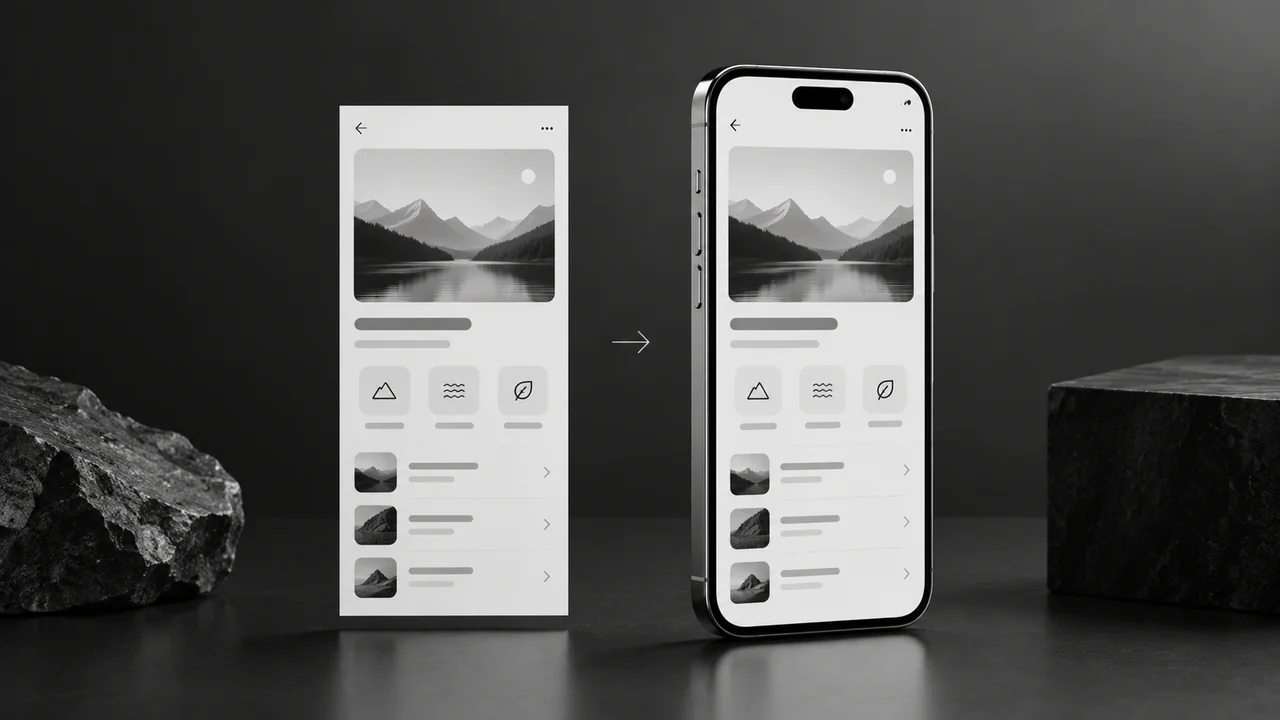
How to export a transparent-background device mockup PNG: when to use transparency vs a solid fill, PNG vs JPG/WebP, and a free browser workflow in MockShot Studio.
Short answer: open MockShot Studio, place a device, leave the canvas background empty (or clear any fill you added), and export as PNG. The PNG keeps the transparent areas. You don't need an account for that — unlimited free 2D stills work as a guest. Use JPG only when you want a solid white fill; use WebP when file size matters more than alpha.
A transparent PNG device mockup is the version you drop onto a colored landing page, a dark hero, a slide deck, or a Figma frame without fighting a leftover white box. This post is specifically about that export path — when transparency helps, when a solid background is better, and how PNG compares to JPG and WebP. For the broader backgrounds-and-formats checklist, see Mockup backgrounds and export.
Facts below are as of November 5, 2026.
What "transparent PNG device mockup" actually means
Three layers matter:
- The device frame — bezel, buttons, camera island. Those pixels are opaque.
- The screen content — your screenshot. Opaque unless the screenshot itself has alpha.
- Everything outside the device — the canvas. That is what people mean by "transparent background."
If the canvas is empty and you export PNG, area outside the phone (or laptop, watch, etc.) stays see-through. Put that file on a blue hero and the blue shows through. Export the same scene as JPG and those pixels become white instead.
How to export a transparent PNG in MockShot
- Open the editor in a modern browser. No signup needed for 2D stills.
- Set the canvas size first (square, Open Graph 1200 × 630, Story, custom, etc.). Changing ratio later can crop the frame.
- Add a device from the catalog and click its screen to import a PNG, JPG or WebP screenshot.
- Do not fill the canvas with a solid color or gradient if you want transparency. Clear any background you already added.
- Check the preview: empty canvas areas should show the checkerboard (or whatever your browser uses for alpha), not a flat color.
- Export as PNG. Open the downloaded file in Preview, Photos, or a browser tab with a colored page behind it to confirm the edges are actually clear.
That whole path works logged out. Guest drafts stay in the local browser only; export anything you care about before clearing site data.
Transparent vs solid background — when to pick which
| Destination | Prefer | Why |
|---|---|---|
| Website hero / docs with its own color | Transparent PNG | No white box fighting the page |
| Slide decks and Notion embeds | Transparent PNG | Slides often change theme |
| Email newsletters | Solid background (or flatten) | Many email clients mishandle alpha |
| Social posts with a fixed brand color | Either | Transparent if the platform lets you layer; solid if you want one locked look |
| Print / PDF handouts | Solid | Printers don't "see through" |
| App Store / Play listing screens | Usually solid or designed scene | Stores expect finished frames, not floating devices |
Rule of thumb: if the mockup will sit inside another design that already owns the background, export transparent. If the mockup is the finished asset, give it a deliberate background before export.
PNG vs JPG vs WebP for device mockups
MockShot exports 2D stills as PNG, JPG, WebP or SVG. Quick differences that matter for device frames:
| Format | Transparency | Typical use | Watch-outs |
|---|---|---|---|
| PNG | Yes (alpha preserved) | Web pages, design tools, anything layered | Larger files than JPG/WebP for photos |
| JPG | No — transparent areas fill white | Social uploads that reject alpha, email | Soft edges and thin bezels can show compression artifacts |
| WebP | Can support alpha in the format; use when you care about size | Modern sites that already serve WebP | Older tools and some email clients still struggle |
| SVG | Wraps a rendered image | Embedding a fixed-size mockup in a page | Not editable vectors of the device paths |
For a clean transparent device mockup, PNG is the default. Switch to JPG only when a platform forces it or you intentionally want a white matte. WebP is fine when your CDN already serves it and you have checked alpha support in the destination.
Small details that break transparency
- You added a background and forgot. Gradients and solid fills are opaque. Clear them before export if you want alpha.
- You exported JPG by habit. JPG cannot keep transparency. Re-export as PNG.
- Checkerboard in the editor ≠ final file. Always open the download. Editor zoom is "fit to workspace," not 1:1 pixels.
- Soft shadows on a transparent edge. Shadows look good on solid colors; on a busy page they can muddy. If the page is noisy, bake a subtle solid plate instead.
- Wrong canvas size. A transparent PNG that is 4000 px wide is painful to drop into a 630 px Open Graph slot. Size the canvas for the destination first.
Devices and limits worth knowing
Frames cover phones up to iPhone 15 Pro Max / Pixel 8 / Galaxy S24 Ultra, plus iPads, MacBooks, Dell XPS, iMacs, TVs and Apple Watch. There are no iPhone 16 or 17 frames and no browser-window frames yet — for a website screenshot, a MacBook or iMac frame does the job. Screenshots are processed locally in the browser; guest drafts do not sync across devices.
3D is a separate path: one device at a time, adjustable angles, 3–20 second animation. Free plan gives watermarked 3D stills and video preview only; watermark-free 3D stills and video download need Pro ($9.9/month) or Lifetime ($199). Transparent PNG stills in 2D stay free and unlimited.
A 60-second checklist before you hit Export
- Canvas sized for the destination.
- No solid/gradient fill on the canvas (unless you want one).
- Screenshot is sharp; Cover/Contain chosen so text stays readable.
- Format set to PNG.
- Download opened once to confirm alpha against a colored backdrop.
If that matches what you need, open the editor and export a transparent PNG device mockup in a couple of minutes. For motion instead of a still, the companion walkthrough is 3D device mockup online free.