What's the Fastest Way to Make a Device Mockup Without Photoshop?
MockShot
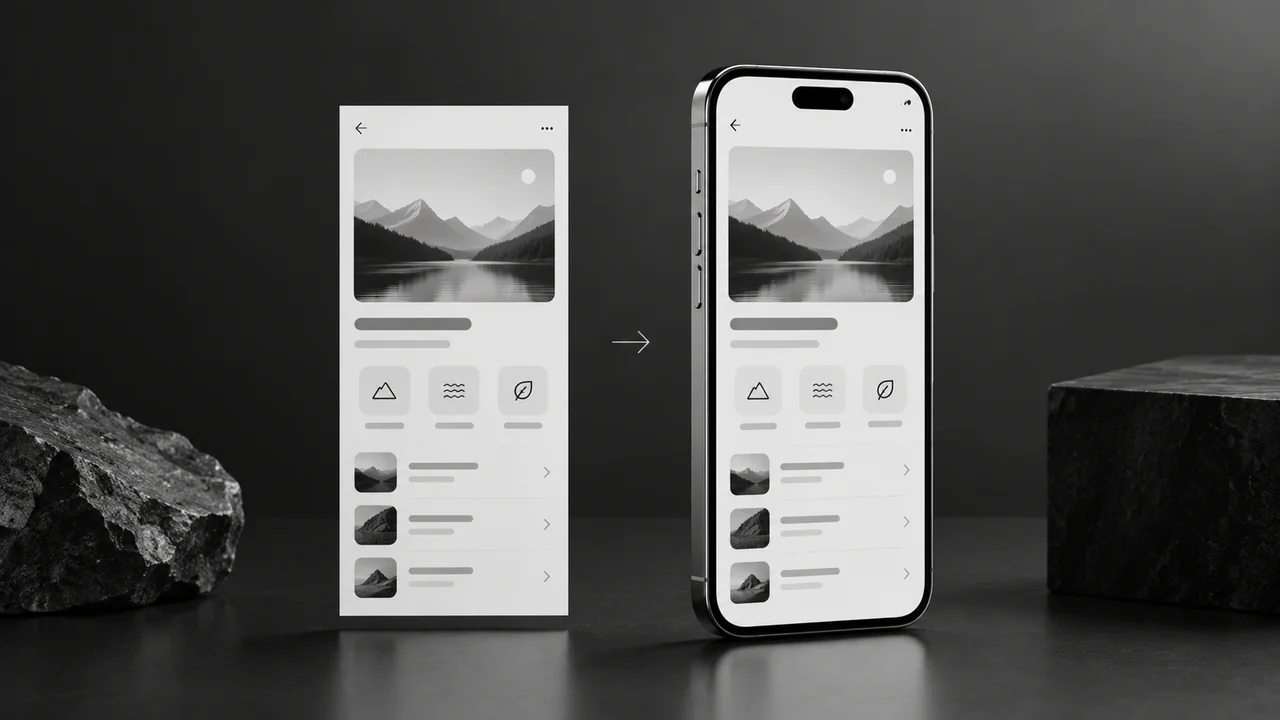
Make a device mockup without Photoshop in minutes: open MockShot Studio, pick a phone or laptop frame, drop in a screenshot, set the canvas, and export a clean still.
Short answer: the fastest way to make a device mockup without Photoshop is to open MockShot Studio in your browser, pick a phone / tablet / laptop frame, click the screen, upload a PNG/JPG/WebP screenshot (up to 20 MB), set the canvas size for where the image is going, and export. No PSD templates, no smart-object nesting, no local install. Flat 2D stills export on the free plan; watermark-free 3D stills and 3D video download need Pro or Lifetime.
That's the whole recipe. Everything below is how to keep that five-minute path from turning into a half-hour of crop fixes.
Why Photoshop is the slow path for this job
Photoshop is great at photo retouching and complex compositing. For "put this screenshot into a phone," it usually means:
- Find a PSD mockup that matches the device you claim to show
- Dig for the smart object layer
- Paste, transform, hope the aspect ratio is right
- Flatten, export, notice the status bar is clipped, repeat
None of that is hard for a designer who lives in PS. It is slow if you just need a landing-page hero, a Notion doc illustration, or a pitch-deck slide before a call. An online mockup tool that already has device frames skips steps 1–3.
The MockShot path, click by click
- Open MockShot Studio.
- Filter Devices to the category you need — Phones, Tablets, Laptops, Watches, Displays, Desktops.
- Pick a frame that matches the screenshot's shape (tall phone UI → portrait phone; wide dashboard → landscape tablet or laptop).
- Click the screen and import your capture.
- Choose Cover (fills, crops overflow — usual for marketing) or Contain (shows everything, may letterbox).
- Set the canvas ratio for the destination (16:9 site hero, 9:16 social, square thumbnail).
- Optional: add a built-in background or soft gradient so the device isn't floating on pure white.
- Export PNG, JPG, WebP or SVG for 2D stills.
If you need a second device in the same scene, use Add, then Layers to stack. Replace only swaps the selected frame — it won't invent a duo composition for you.
Frames you can use today (checked live)
As of November 3, 2026, the enabled catalog includes (high level):
| Category | Examples in the editor |
|---|---|
| Phones | iPhone SE / 8 → iPhone 15 / 15 Pro / 15 Pro Max; Pixel → Pixel 8; Galaxy through S24 Ultra; plus older S20/S21, Note 5, OnePlus 8 Pro, Huawei P40 Pro+ |
| Tablets | iPad, iPad Air 5, iPad Mini, iPad Pro 11" / 13", Pixel Slate, Surface Pro 3 / 4 |
| Laptops | MacBook Air 13", MacBook Pro 14" / 16", Dell XPS 13 / 15, Surface Book, MacBook 12" |
| Watches | Apple Watch Series 5 / 8 / Ultra / Ultra 2, Galaxy Watch 4 |
| Displays / desktops | Several TV and iMac frames |
Honest limits: there are no browser-chrome frames (no empty Chrome/Safari window mockups). Phone frames top out at iPhone 15, Pixel 8, and Galaxy S24 Ultra — not iPhone 16/17 or Pixel 9+. These are presentation illustrations, not engineering drawings of the newest hardware.
Match the screenshot once, not three times
Wrong aspect ratio is what makes "fast" mockups look broken.
- Capture on the simulator or device that matches the frame you plan to use.
- If the only clean capture is from a newer phone than the catalog has, start with the closest larger sibling (for example a 15 Pro Max frame for a 16 Pro Max-shaped UI), use Cover, and check the top and bottom edges for clipped status / nav bars before you export.
- Don't use Stretch for UI — it warps type and icons.
For App Store or Play Store submission sizes you still need exact pixel dimensions from Apple or Google. A framed mockup can sit inside a designed store screenshot; it doesn't replace the store's size rules. See App Store screenshot sizes 2026 when that is the real job.
2D still vs a quick 3D tilt
Most "mockup without Photoshop" searches only need a front-facing still. Stay in 2D unless depth actually helps.
Switch to 3D when a short controlled rotation sells the story better than a flat frame — then follow Create a Controlled 3D Device Rotation Video for poses and duration. Evaluating desktop-style 3D tools? The Rotato alternative note covers browser vs install tradeoffs.
What "free" covers (so you don't get surprised)
From the pricing page as of November 3, 2026:
- Free: unlimited 2D still-image exports; screen uploads in 2D and 3D; built-in backgrounds, gradients and canvas ratios; 3D stills with watermark; 3D video preview only.
- Pro ($9.9/mo) or Lifetime ($199): watermark-free 3D stills, 3D video export, custom background uploads, independent image layers in 2D.
So the fastest no-Photoshop path for a blog post, docs page or deck slide is free. A watermark-free rotating clip is not.
Five-minute checklist
- Screenshot cleaned of private data
- Frame exists in the live catalog (don't claim a model that isn't listed)
- Fit mode checked — no clipped island or tab bar
- Canvas set to the destination size
- Export opened at 100% before you paste it into Figma, Notion or the CMS
If Photoshop is already open for retouching photos, keep using it for that. For "screenshot into a device, ship it," the browser editor is usually the shorter road: open Studio, pick a frame, drop the capture, export.