3D Device Mockup Online Free: Animate an App Screenshot in the Browser
MockShot
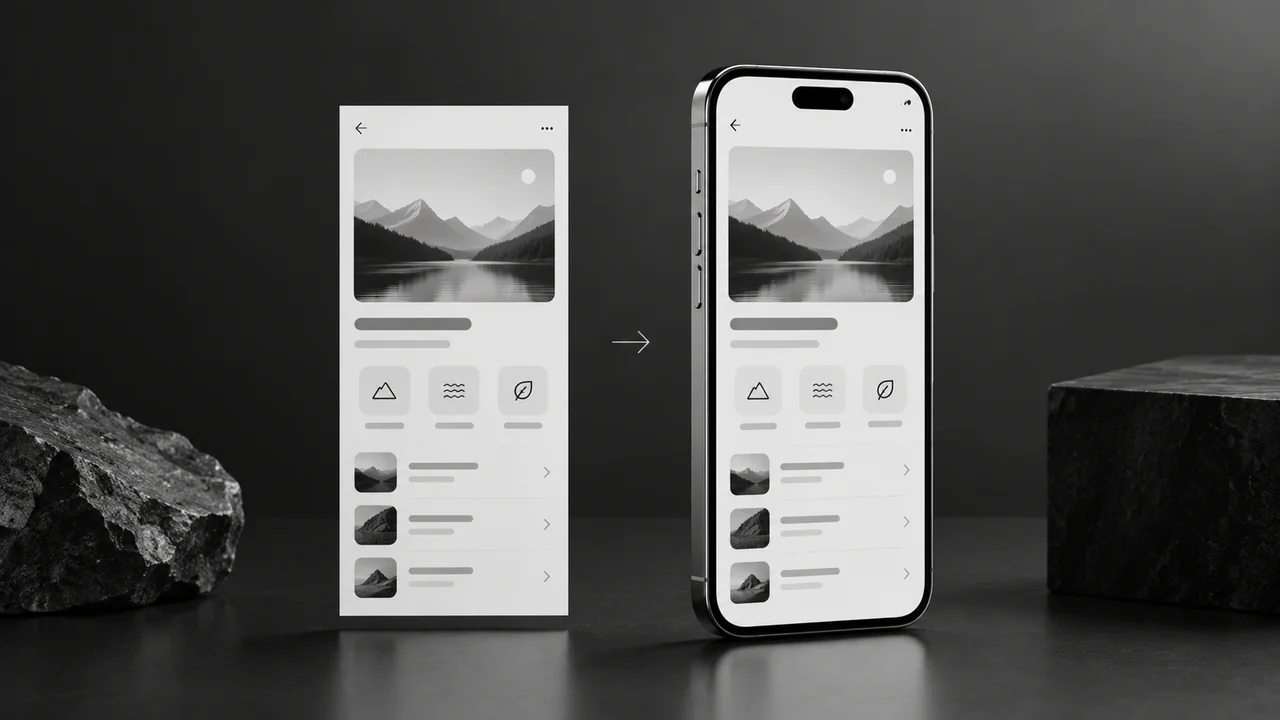
Animate an app screenshot in 3D online without a desktop app. What is free (preview), what is watermarked, when video download needs Pro or Lifetime, and a practical workflow.
Short answer: you can animate an app screenshot in 3D in the browser with MockShot Studio — no desktop app required. Preview the rotation for free. On the free plan, 3D still exports carry a MockShot watermark and video download is not included; watermark-free 3D stills and video download need Pro ($9.9/month) or Lifetime ($199). Unlimited free 2D stills (PNG/JPG/WebP/SVG) stay available either way.
"3D device mockup online free" usually means one of three things people want: (1) spin a phone in the browser without installing Rotato-class software, (2) download a short video for a launch tweet, or (3) grab a tilted still for a landing page. Those are different outcomes, and the free tier covers them differently. This post is the honest free/online path. For a controlled rotation workflow see 3D rotation video; for a Rotato comparison see Rotato alternative.
Facts below are as of November 5, 2026.
What you can do online without installing anything
- Open the editor in a modern browser.
- Add one device frame and import your screenshot (PNG, JPG or WebP) onto the screen.
- Switch into the 3D / animation controls for that device.
- Adjust the angle, pick a short motion (orbit, reveal, swing-style presets depending on what's in the panel), and set duration between 3 and 20 seconds.
- Play the preview in the browser.
That preview step is free. You can iterate on angle and timing without paying. One device at a time — multi-device 3D scenes are not the free-browser path here.
Free vs paid — say it plainly
| Capability | Free | Pro / Lifetime |
|---|---|---|
| Browser 3D preview | Yes | Yes |
| Adjustable angles + 3–20s animation | Yes | Yes |
| 3D still export | Yes, with watermark | Watermark-free |
| 3D video download | No (preview only) | Yes |
| Unlimited 2D still exports | Yes (no account needed) | Yes |
| Custom background upload / extra photo layers | No | Yes |
Pro is $9.9/month; Lifetime is a one-time $199, per the pricing page. Do not expect free unlimited watermark-free 3D, permanent no-watermark 3D, or a free video download — those are not on the free plan.
If your launch post only needs a clean flat device image, export a 2D PNG instead. That path is free, unlimited, and keeps transparency when you want it. See Transparent PNG device mockup export.
A practical free → paid workflow
Stage A — decide if motion is worth it. Drop the screenshot into a front-facing 2D frame first. If the UI is hard to read flat, a 3D tilt will not magically fix tiny labels. Fix the screenshot (crop, contrast, remove private data) before you animate.
Stage B — preview in 3D for free. Dial in a modest angle. Over-rotated phones look dramatic in the editor and muddy on a phone timeline. Keep the duration short for social (5–8 seconds is usually enough); save the 15–20 second versions for landing-page heroes.
Stage C — pick the export that matches the job.
- Need a still for a docs page or tweet image? Try a 3D still. On free it will be watermarked — fine for internal review, not ideal for a public launch.
- Need a video for X, Product Hunt, or a landing hero? That download is Pro/Lifetime.
- Need something publishable today with $0? Export a sharp 2D PNG or WebP and ship. Add motion later if the post actually underperforms without it.
Online free vs desktop 3D apps
Browser tools win on setup time: no Mac-only installer, no waiting for a render farm account. Desktop apps like Rotato win when you need cinematic multi-device scenes, long edits, or a weekly pipeline of polished launch videos. Most indie releases do not need that every week. If you only animate a screenshot a few times a quarter, previewing online and upgrading only when you need the video file is usually cheaper than buying a desktop seat "just in case."
Device and privacy notes
Frames include phones up to iPhone 15 Pro Max / Pixel 8 / Galaxy S24 Ultra, plus iPads, MacBooks, Dell XPS, iMacs, TVs and Apple Watch. There are no iPhone 16 or 17 frames and no browser-window frames. For a website UI, use a laptop or iMac frame. Screenshots are processed locally in the browser; guest drafts stay on that machine only.
Common mistakes when animating an app screenshot
- Animating a noisy screenshot. Status-bar notifications, unread badges with real names, and half-loaded images all look worse in motion. Clean first.
- Too much tilt. If people need to read the UI, keep the device closer to front-facing and use a gentle orbit.
- Assuming preview = download. Free preview is not a free MP4. Check pricing before you promise a client a video delivery on the free tier.
- Skipping the 2D fallback. A transparent or solid 2D PNG often converts better than a watermarked 3D still for the same launch day.
- Wrong aspect for the platform. Set the canvas to the destination (square for many feeds, 16:9 for site heroes) before you spend time on the motion path.
When to upgrade
Upgrade when you have a concrete delivery: a Product Hunt gallery clip, a landing-page autoplay loop, or a client who will not accept a watermark. Previewing first means you already know the angle works before you pay. If you mostly ship static store screenshots and blog images, staying on free 2D stills is the rational call.
To try the motion path yourself: open MockShot Studio, drop in a screenshot, preview the 3D animation, and only then decide whether a Pro/Lifetime video download is worth it for that launch.